
Connie for Slack
Put your go-to-market work where your team already talks
The Connie app for Slack lets you build automations that run when something happens in Slack and act back in Slack — posting updates, replying in threads, opening channels and reacting — without writing code.
 Free to install, on a paid Slack plan. You'll need a Connie account to build automations.
What Connie is, and what the Slack app does
Connie is an AI workspace for go-to-market teams. It holds your people, companies, deals and tasks, a multichannel inbox and a workflow builder, and connects to more than a thousand tools and data providers so that the work between them — researching an account, enriching a lead, chasing a deal, handing something to a colleague — can run on its own.
The Connie app for Slack is how that work reaches the place your team actually watches. Without it, an automation finishes somewhere nobody is looking: a row updated in a table, a record enriched, a reply received. Someone still has to notice and tell the rest of the team. With it, the automation itself posts to the channel, answers in the thread, DMs the owner, or opens a channel for a new deal — and anything said in Slack can start an automation in the first place.
That is the problem it solves: the gap between an automation finishing its work and a person finding out. Connie is not a Slack client and does not replace one. It never renders your Slack conversations back to you as a browsable archive.
What your team sees in Slack
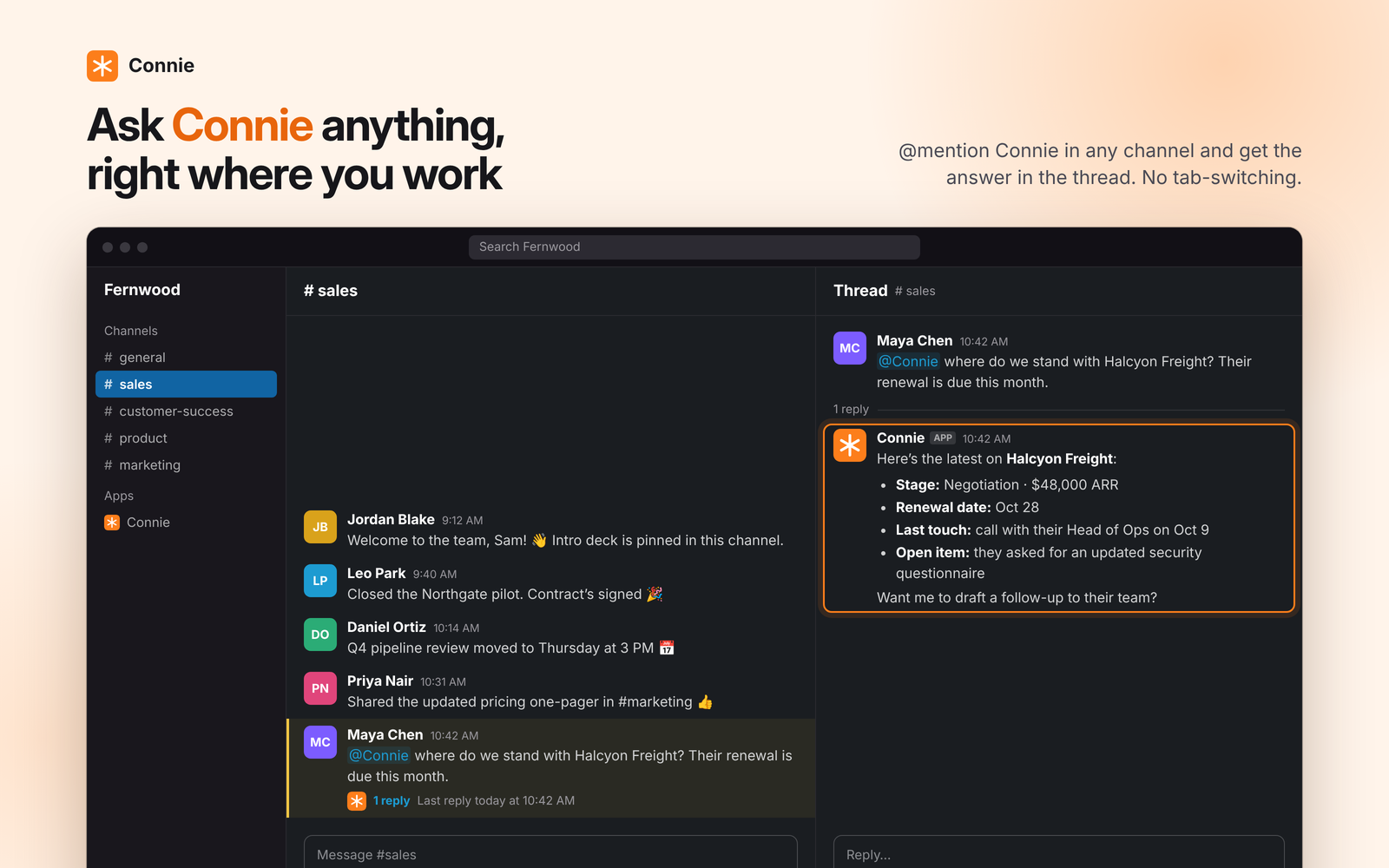
Once Connie is installed and it is in a channel — because an automation pointed it there, or because someone invited it — your team works with it where they already are. @mention Connie in a channel and it answers in a thread, using what your Connie workspace already knows about the account, deal or person being discussed.
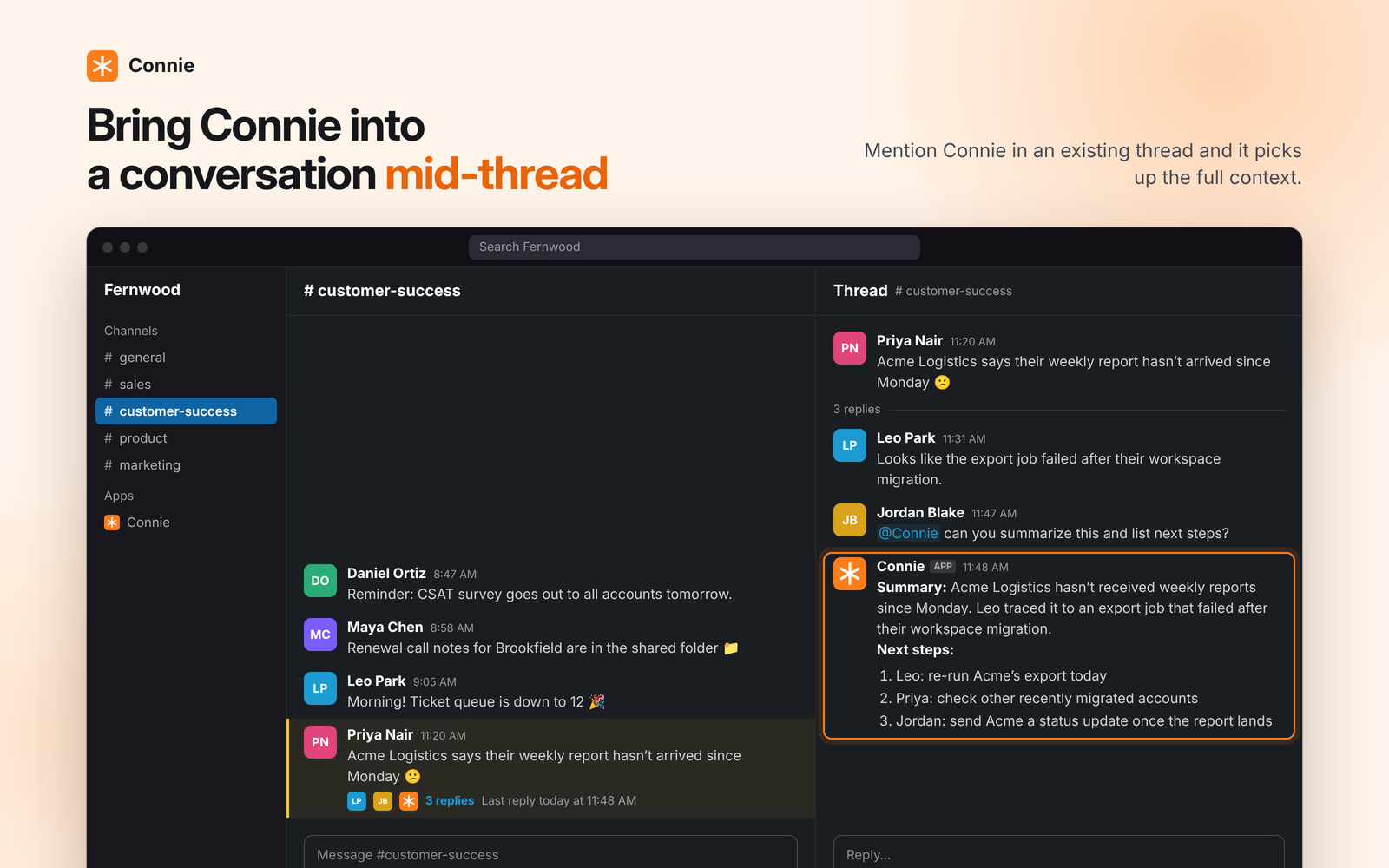
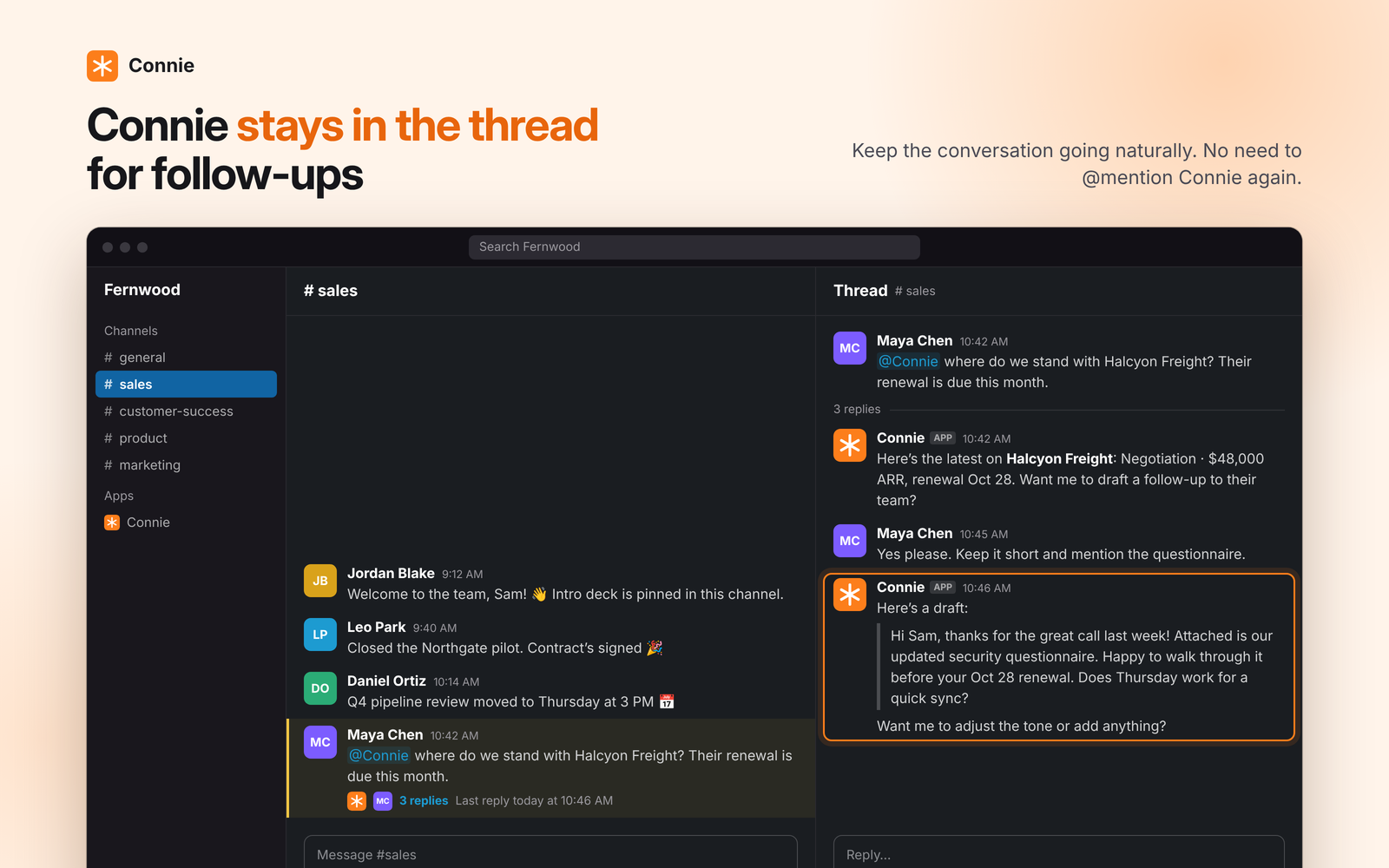
It can be brought into a conversation that is already running: mention it partway through a thread and it reads the messages above before answering. After that it keeps following that thread, so a colleague can reply normally without mentioning it again. Connie decides whether a follow-up is worth answering rather than replying to everything, and it only ever sees channels it is a member of.
From Ask Connie in the Connie app you can also search Slack and send messages, using your own Slack permissions.
Connie's answers are generated by AI. Replies, thread summaries and drafted messages come from a large language model, and AI output can be inaccurate, incomplete or out of date — including when it summarises a thread you have not read, or drafts a message in your name. Check anything you are going to act on or send. Your Slack content is never used to train AI models.
How it works in Slack
Four steps, from installing to the first message your team sees.
1.Install Connie from this page
Choosing Add to Slack takes you straight to Slack's own approval screen, where Slack lists every permission the app asks for before anything is installed. Approve it and Connie is added to your workspace as a bot user, with a confirmation page back on connie.ai.
Slack requires an automation platform app like Connie to be installed on a workspace with a paid Slack plan, so the install checks your workspace's plan at the end of approval. On the free Slack plan the installation is cancelled and nothing is kept.
Nothing is posted to your workspace at install time, and installing does not put Connie in any channel. After that it is only ever in the channels your automations point it at: it can add itself to a public channel you name in a trigger or a step, and a private channel always needs a person to invite it. It never joins a channel nobody pointed it at.
2.Connect the Slack workspace to Connie
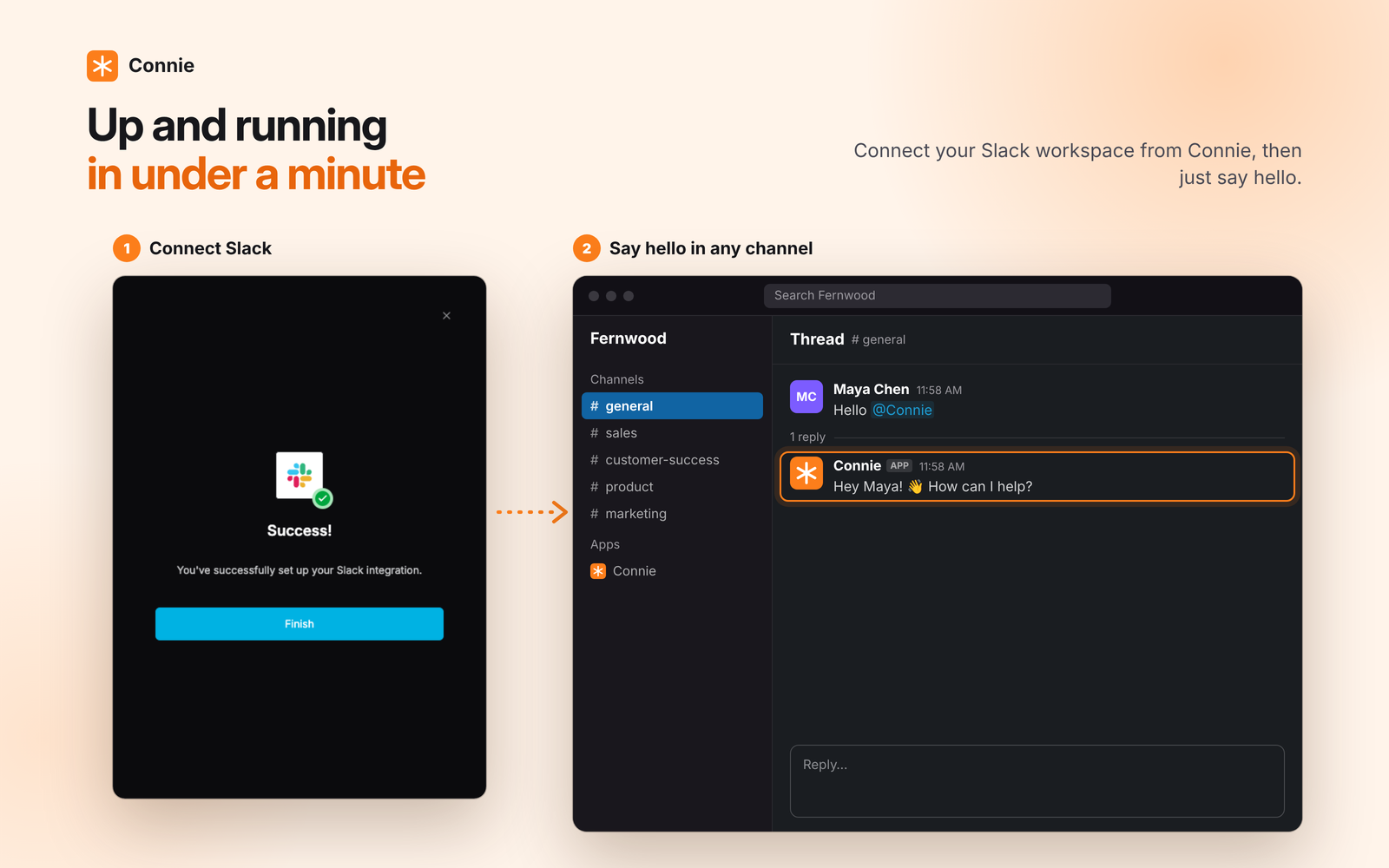
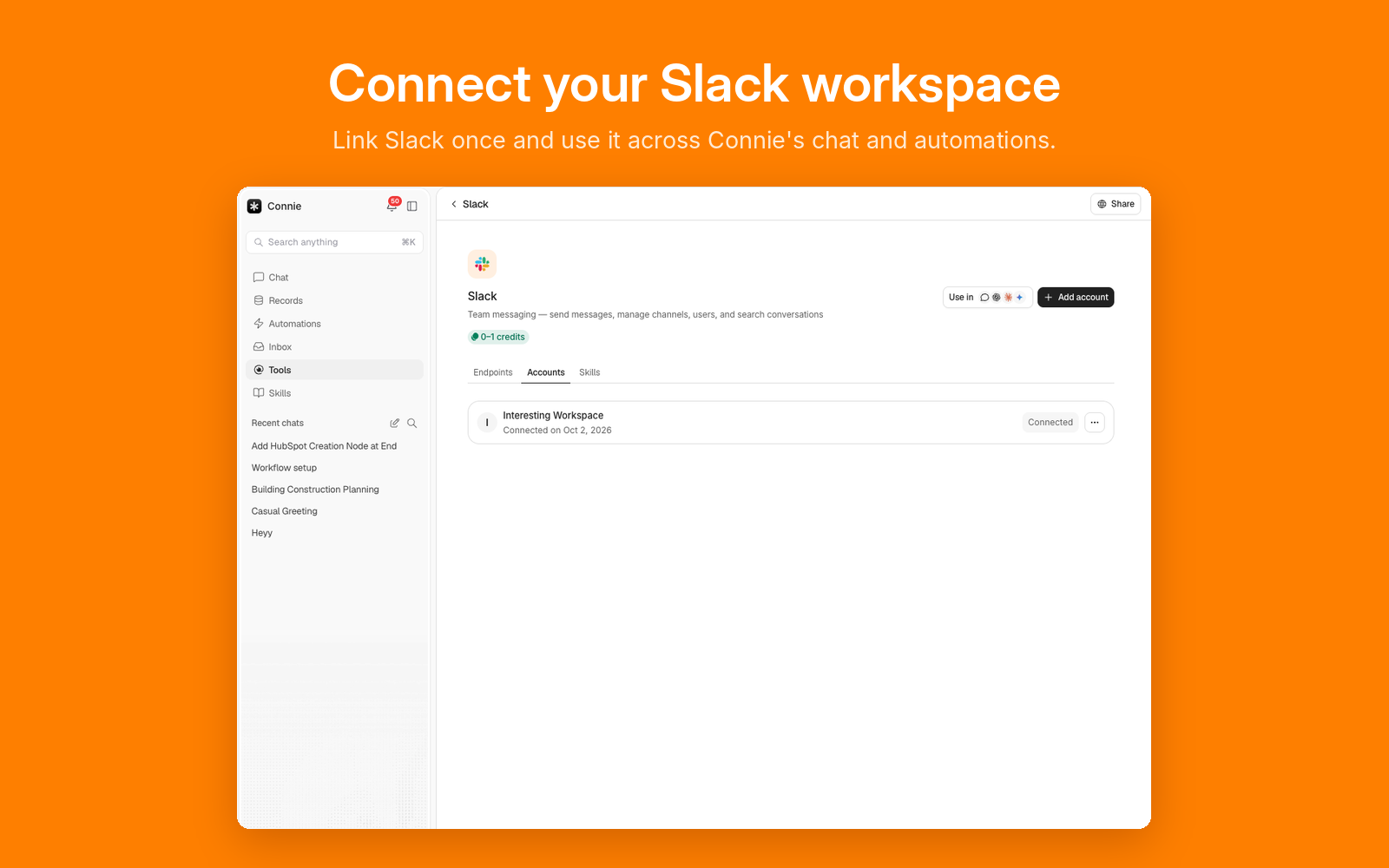
Sign in to Connie and open Tools → Slack. Connecting there links the Slack workspace you just installed into to your Connie workspace, so automations know which Slack to act on. One Connie workspace can hold several Slack accounts.
3.Pick a Slack event to start the automation
In Connie's workflow builder, a Slack trigger starts a run the moment something happens in Slack. Connie listens for the app being @mentioned, a message posted in a channel the app is a member of, a direct message sent to Connie, a reaction added, a channel created, someone joining a channel, a file shared, and a new member joining the workspace.
Connie only receives messages from channels it is a member of. It is not a Slack client: there is no inbox or message-browsing interface over your Slack content inside Connie. When you ask Connie's chat to search Slack, it searches as the person who connected that Slack account, so it only finds messages in channels that person can already read.
4.Let Connie act in Slack
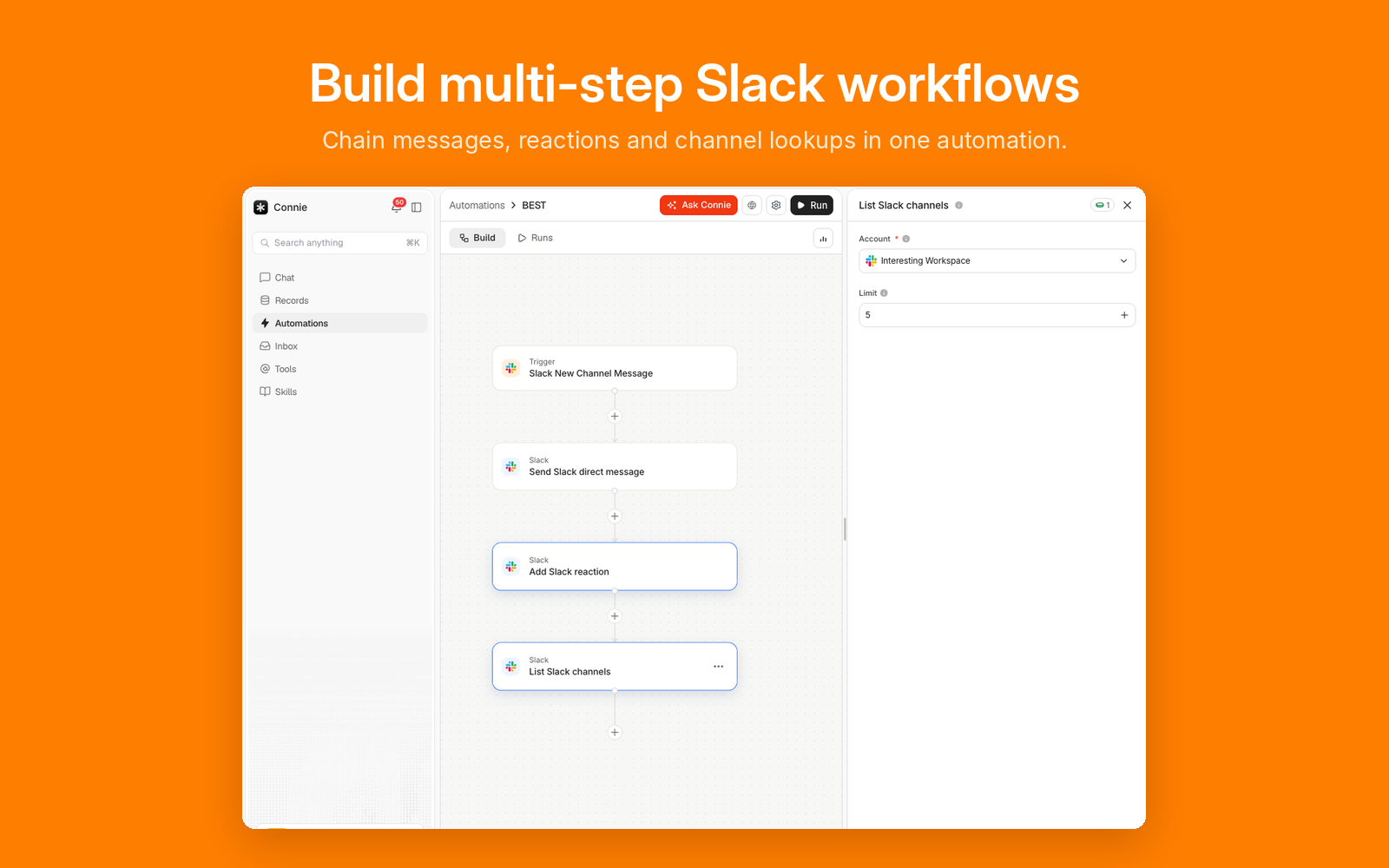
The steps that follow a trigger are what your team sees in Slack. Connie can post a message to a channel, reply in a thread, send a direct message, add or remove a reaction, upload a file, update or delete a message it posted, create, rename, archive or set the topic of a channel, invite people to one, and manage user groups.
Who a message comes from is yours to choose, per step. By default a step you built sends as you, using the Slack account you connected yourself — outreach you wrote should come from you. Turning on Send as Connie app (bot) sends it from the Connie app instead, and a step an AI agent runs on its own sends as the app unless that step turns it off, so an autonomous message is not mistaken for one you typed.
A step can only send as the person who connected that Slack account. If you build a step on a colleague's connected account, it posts as the Connie app, not as them — nobody in your workspace can send a Slack message under someone else's name.
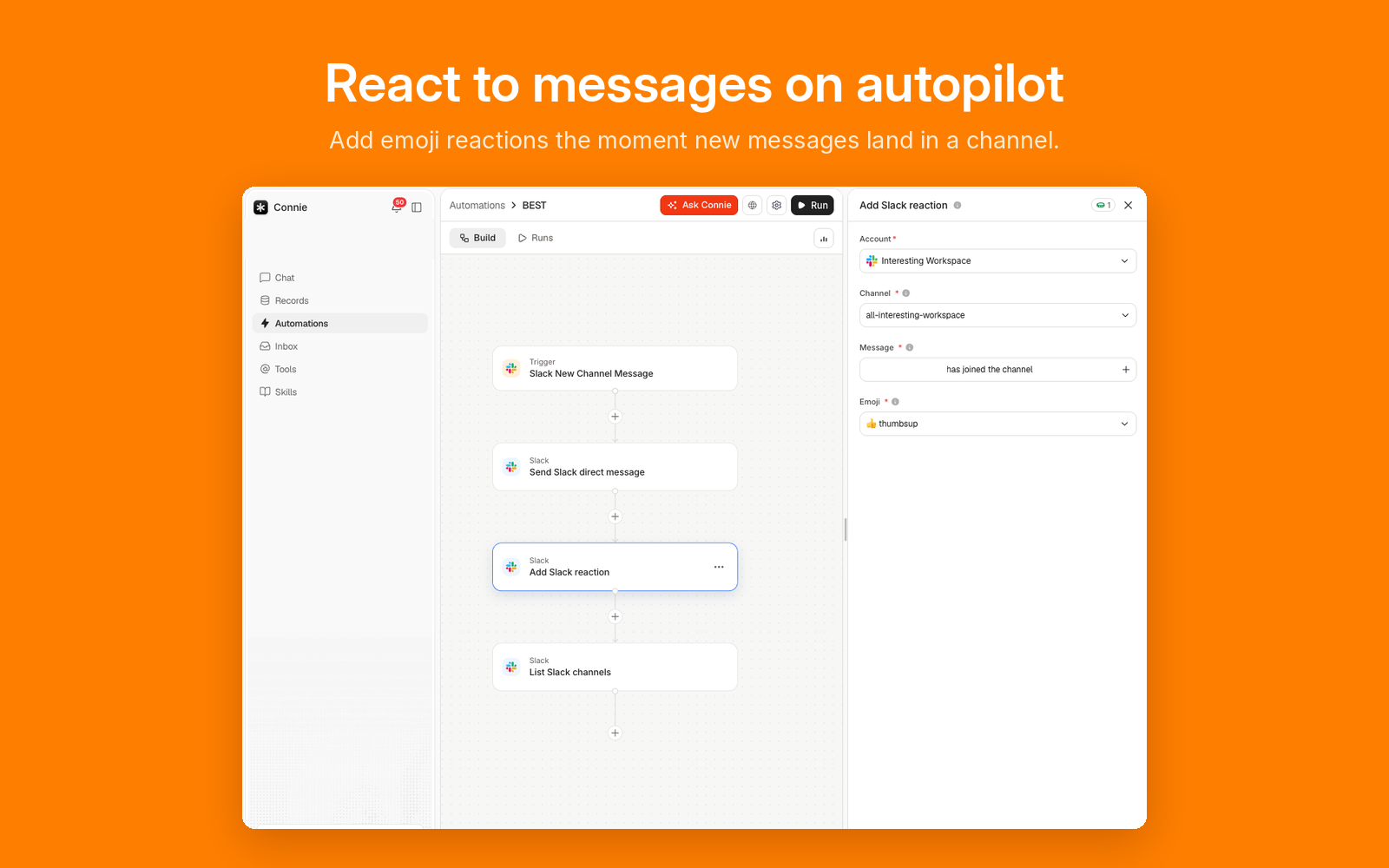
Steps chain, so one Slack event can post, react and look up a channel in a single run — and reach the rest of Connie in the same automation, enriching a lead or creating a deal between two Slack steps.
What you can build
Automations are built in Connie's workflow builder, with no code. For example:
- Deal-stage alerts: post to a channel when a deal changes stage or moves to Closed Won.
- Pipeline digests: on a schedule, search your deals, have AI summarize them and post the summary to a channel.
- Daily briefs: on a schedule, send each rep an AI-written brief by DM.
These are examples of automations you build yourself; installing the app does not switch them on.
What Connie can and cannot see
Slack shows you the full permission list before you install, and Connie asks only for what its automations run on. In practice that means it can read messages in channels it is a member of, post and manage messages and files, manage channels and user groups it is allowed to, read reactions and add them, and look up a user by name or email so a workflow can message the right person.
One of those permissions lets Connie join a public channel. Slack only delivers a channel's messages to an app that is in that channel, so a trigger watching a channel cannot fire until Connie is in it, and a step posting to one cannot post. Connie therefore adds itself to a public channel at the moment an automation names it, or Ask Connie posts to or reads it, and only then. It cannot add itself to a private channel at all — those need a person to invite it — and it never joins a channel on its own.
Because a step can send as you, the install also asks for a small set of permissions on your own account: posting and uploading as you, searching the public and private channels you can already read, so a workflow can find a message you are looking for, and reading your own one-to-one direct messages, so you can ask Connie about a conversation you are already part of.
That last permission is narrow on purpose. Connie subscribes to no direct-message events on your account, so your conversations are never streamed to it or stored as they happen — the only direct messages it is sent are the ones addressed to Connie itself. It cannot search your direct messages or read messages from group direct messages. Slack does give the Connie app basic information about a group direct message it has already been added to, because the same member-joined event powers the Slack New Channel User trigger across Slack conversation types; that permission does not include group-DM message history. A one-to-one conversation is read only at the moment you ask for it, only from your own direct messages, and only for you: nobody else in your workspace can reach your direct messages through Connie.
Connie does not index or crawl your workspace. Your Slack content is never used to train AI models. The Privacy Policy sets out in full what is processed, how long it is kept, and how to remove it.
You can remove Connie at any time from your Slack workspace's app management page, or disconnect the account from Connie's Tools page.
Security and compliance
The model. Connie's replies, summaries and drafts are produced by third-party large language models, reached through our model routing provider, OpenRouter, under provider terms that prohibit training on the content we send. No Slack content is used to train any AI model, ours or a provider's.
Retention. Slack event records stored for your automations are deleted the moment the Slack account is disconnected or removed from Connie. Slack content deliberately included in a saved AI Chat, Agent conversation, Workflow result or Record remains with that workspace item until it or the workspace is deleted; deleting a Connie workspace removes access immediately and purges all of its data 7 days later. Temporary file downloads and intermediate search responses are not kept as a separate Slack archive. Prompts and responses are not retained by the model providers for training.
Tenancy. Slack content belongs to the one Connie workspace that received it, separated per workspace in our database, and is never shared with, or made searchable by, another customer. Within your workspace, each connected Slack account has its own access setting — Everyone, Specific users or Only me — so you decide which colleagues can build automations on it.
Residency. Customer data is stored in the EU, on Supabase in AWS eu-central-1 (Frankfurt, Germany). Model inference may be processed outside the EU by the provider a request is routed to, under appropriate transfer safeguards. The Privacy Policy sets out the full retention schedule, our sub-processors and how to request deletion.
Add Connie to Slack
Installing takes one approval in Slack. Afterwards you'll land on a confirmation page on connie.ai telling you the app was added, and the next step is to sign in to Connie and connect Slack from the Tools page.
Your Slack workspace needs to be on a paid Slack plan — Pro, Business+ or Enterprise. Slack requires this of every automation platform app, and Connie checks the plan right after you approve the install, so a free Slack workspace is turned away at that point rather than part-way through setup. Your Connie plan is separate: Connie's own free tier can use the Slack app.
Questions, or something not working? Connie Support answers at support@connie.ai within one to two business days.